Google Ads Reporting in ClimbinSearch: How to Read Performance Monthly and Daily

Ioana Ciudin
February 19, 2026
ClimbinSearch Reporting brings together Google Ads, Meta Ads, GA4, and Google Search Console in one place. This article focuses on Google Ads Reporting and the reading logic behind it: not just “what happened,” but what changed, what drove it, what constrained it, and what actually created value.

Every report comes in two cadences:

  • Daily for control and fast validation
  • Monthly for decisions, trend reading, and strategic direction

For the examples below, we’ll use Monthly.

The four tabs that explain performance end to end

Google Ads Reporting is structured into four tabs:

  1. Account: overall performance and trend story
  2. Campaigns: budget allocation vs value contribution (by campaign and by type)
  3. Impression Share: Search opportunity: are we limited by budget or rank?
  4. Conversions: outcome integrity: which actions create value?

Together, these tabs form a repeatable reporting workflow.
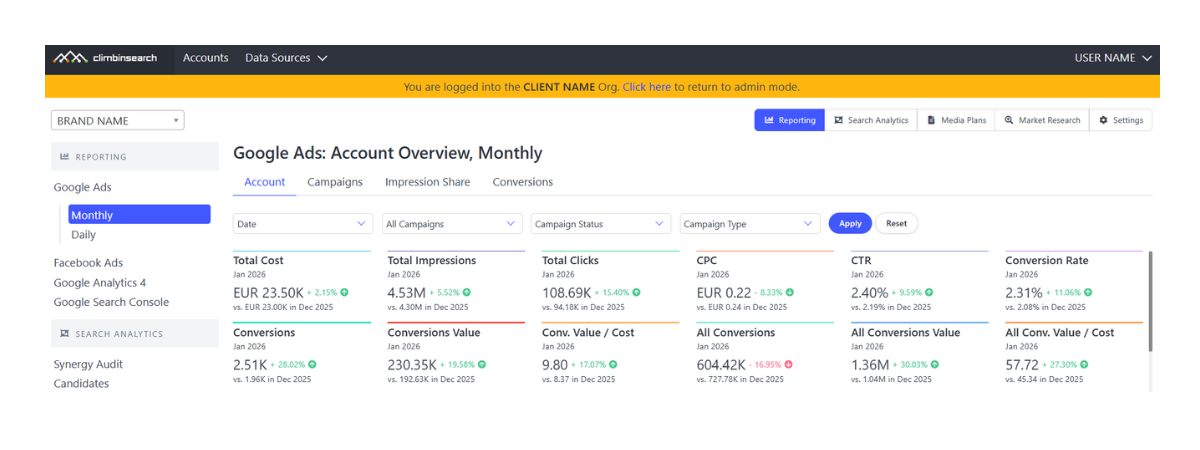
Daily vs Monthly: same structure, different purpose

Daily reporting is for:

  • pacing and spend control
  • catching sudden drops or spikes
  • validating changes (bids, budgets, feed updates)
  • detecting tracking disruptions early

Monthly reporting is for:

  • understanding trend direction and seasonality
  • explaining what shifted structurally in the account
  • redistributing budgets based on contribution, not intuition
  • separating scale effects from efficiency effects

Account tab: overall performance and the trend story

The Account tab is the starting point because it gives you the full performance story in one place: outcomes, efficiency, traffic, and visibility.

Set the context before you interpret results

At the top, you can control what you’re looking at:

  • choose the Monthly or Daily view (same structure, different cadence)
  • analyze up to 24 months of history or select specific months
  • filter by All Campaigns, Campaign Status, and Campaign Type
  • isolate a slice such as Performance Max only, Search only, or even a single campaign

This matters because most reporting disagreements are not about metrics, they’re about comparing different slices of the account without realizing it.

KPI layer: one row that tells you what changed

The KPI layer gives you the full baseline, including both scale and outcome signals. Each KPI is shown with a month-over-month comparison, so you can immediately see direction and magnitude: what moved up, what moved down, and where the story likely starts.
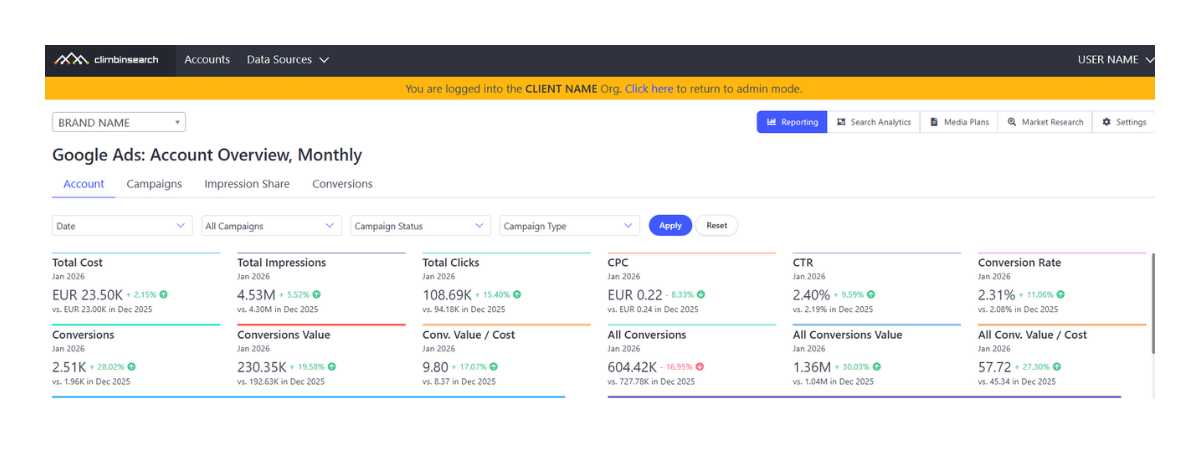
The goal of this layer isn’t to “report everything.” It’s to answer fast:

  • Did outcomes move? (conversion value, conversions)
  • Did efficiency move? (ROAS, CPC, conversion rate)
  • Did scale move? (impressions, clicks)
  • Did investment move? (cost)

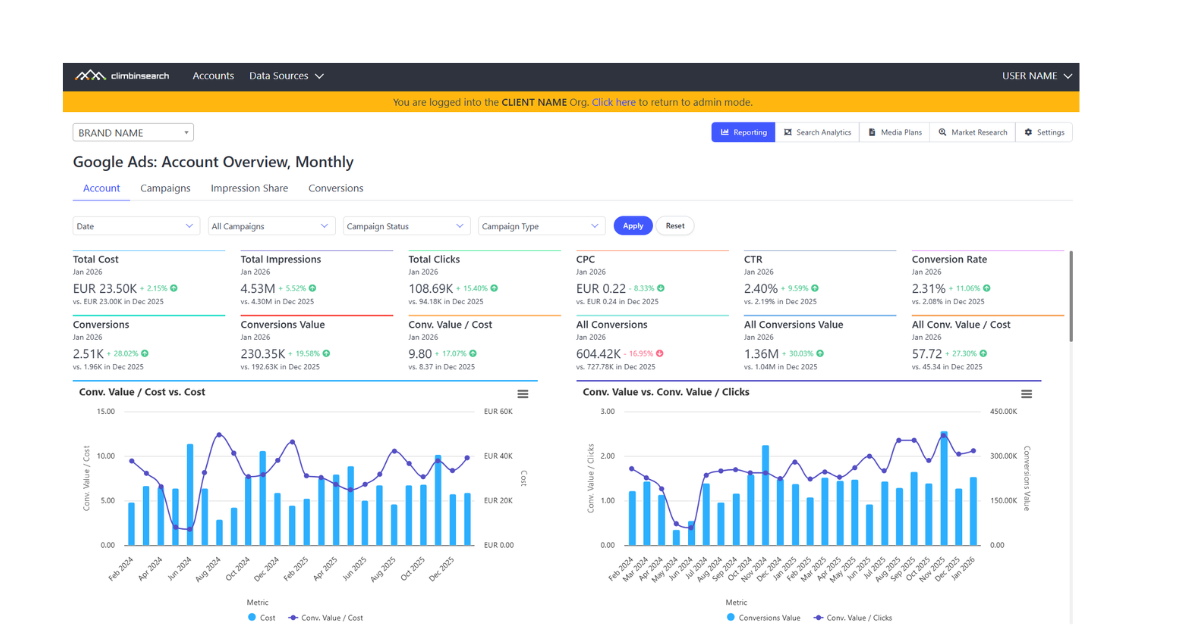
Trend charts: see relationships, not isolated totals

Under the KPI row, the dashboard moves into trend charts that show how the account behaves over time.

These charts are not there to “visualize metrics.” They are there to expose cause-and-effect patterns.

A few examples of what becomes obvious at a glance:

  • Cost up, conversion value flat → scaling without payoff
  • Conversion value up while cost stable → efficiency improvement, not just spend
  • Impressions up but CTR down → visibility is growing but intent/quality may be diluted
  • CPM rising while impressions are flat → inventory cost pressure or audience shift
  • ROAS improving while CPC rises → clicks got more expensive, but value per click increased
  • Conversion rate dropping while clicks rise → more traffic, weaker conversion quality

The reading order: value → conversions → clicks → impressions

The Account tab makes it natural to read performance from business impact down to scale:

  1. Value layer: conversion value + ROAS
  2. Conversion layer: conversions + CPA / conversion rate
  3. Traffic layer: clicks + CPC
  4. Visibility layer: impressions + CPM + CTR

Starting at value keeps the interpretation tied to outcomes. Starting at impressions often produces the wrong story.

The table: validate the story month by month

At the bottom, you get the underlying table, by default sorted by cost so you can instantly identify the highest-investment months. You can sort by any metric (conversion value, ROAS, conversions, CPC, CTR) to validate the story you saw in the trend charts.
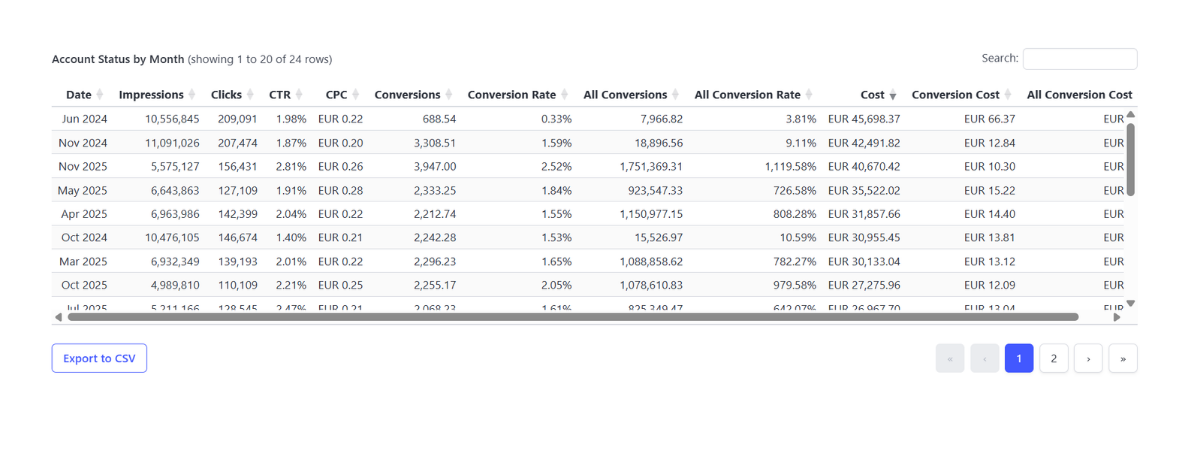
The result: the Account tab becomes a repeatable routine, a place where you can answer, every month:

What changed, why it changed, and whether the change came from outcomes, efficiency, traffic, or visibility.

Campaigns tab: cost share vs conversion value share (budget alignment)

The Campaigns tab is where you stop looking at totals and start looking at structure.

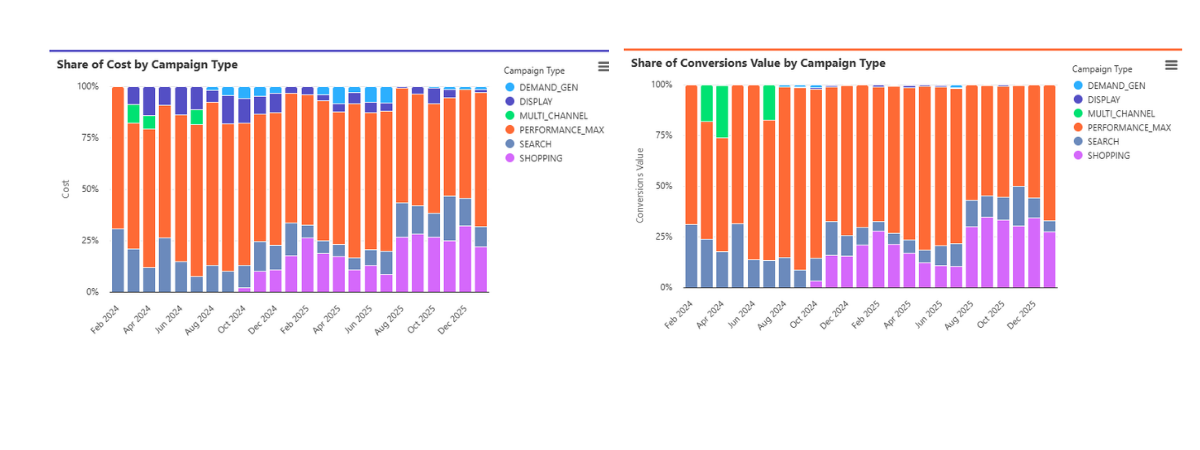
Instead of ranking campaigns in a table, it shows 100% share charts per month, at two levels:

  • by campaign
  • by campaign type

This makes budget allocation and contribution shifts instantly visible.

Share of Cost: investment structure

You can see:

  • Share of Cost by Campaign
  • Share of Cost by Campaign Type (Performance Max, Search, Shopping, Display, Demand Gen, Multi-channel)

This shows whether spend is concentrated (dependency risk), and what strategic engine dominates the account.

Share of Conversion Value: outcome structure

Next, you see:

  • Share of Conversion Value by Campaign
  • Share of Conversion Value by Campaign Type

This reveals where revenue actually comes from.

The insight is the gap

Comparing cost share with value share exposes misallocation and opportunity:

  • cost share grows while value share stays flat → efficiency deterioration
  • value share exceeds cost share → high leverage driver
  • mix becomes too concentrated → dependency risk
  • a second engine (e.g., Shopping or Search) grows in value share → resilience and scalable growth paths

The screenshot lets you validate the exact drivers behind the shifts.
Impression Share tab: diagnose Search constraints (budget vs rank)

This tab answers a Search-specific question:

Are we visible where demand exists, and if not, what’s blocking us?

The chart separates:

  • Impression Share
  • Impression Share Lost (Budget)
  • Impression Share Lost (Rank)

This turns Search into a diagnostic view:

  • high lost budget = underfunded demand capture
  • high lost rank = competitiveness constraint (bids, quality, ad strength, competition)

A second chart, Impressions vs Impression Share, shows how scale and competitive position interact:

  • impressions up, share down → market grew faster than your presence
  • share up, impressions stable → competitive gain without expansion
  • both up → efficient scaling

This prevents guessing and makes Search opportunity measurable.

Conversions tab: protect outcome quality (not all conversions are equal)

The Conversions tab ensures you understand what “conversions” really means in the account.

Primary vs All conversions

You see:

  • Conversions, Conversion Value, Value / Cost
  • All Conversions, All Conversion Value, All Value / Cost

If All Conversions rises but Conversions doesn’t, you may be tracking more secondary actions without increasing core outcomes.

Trends by conversion action name

Two charts break down evolution over time:

  • Conversions by Conversion Action Name
  • Conversion Value by Conversion Action Name

This separates:

  • revenue actions (transactions, purchases)
  • mid-funnel actions (add to cart)
  • engagement signals (engaged session, clicks)

It also makes risks visible:

  • value concentration in one action (dependency)
  • volume growth without value growth (low-quality scaling)

Table: validate and trace back to campaigns

The table lets you connect specific conversion actions to campaigns, validate spikes, and troubleshoot measurement issues.

The monthly workflow: how teams use the report

A practical monthly routine:

  1. Account: confirm direction (value, efficiency, scale)
  2. Campaigns: check alignment (cost share vs value share)
  3. Impression Share: diagnose Search constraints (budget vs rank)
  4. Conversions: validate outcome quality (actions + value drivers)

Daily reporting follows the same logic, just faster: validate stability and catch anomalies early.

What you unlock when reporting is built like this

When reporting is structured around drivers, constraints, and outcome integrity, you get:

  • stronger budget decisions (allocation matches contribution)
  • clearer Search strategy (funding vs competitiveness)
  • less dependency on a single campaign type
  • cleaner conversion narratives (value actions vs noise)
  • a repeatable reporting routine teams can follow every month

Google Ads performance isn’t a single KPI. It’s a system and it should be read like one.

Bring Clarity to Your Search and Digital Media Workflows

Plan faster. Report smarter. Understand your performance in one place.
Book a Demo